Wave 1
Input
Single-line text entry: names, emails, numbers, search.
- Multi-line text: use Textarea.
- Picking from known options: use Select or RadioGroup.
Install
Terminal
pnpm dlx shadcn@latest add @acme/inputOr import from the package: import { Input } from '@acme/react'
Examples
Basic
We send invoices here.
input-basic.tsx
import { Field, FieldDescription, FieldError, FieldLabel } from '@/components/ui/field'
import { Input } from '@/components/ui/input'

export default function InputBasic() {
  return (
    <div className="flex max-w-sm flex-col gap-6">
      <Field>
        <FieldLabel>Work email</FieldLabel>
        <Input
          type="email"
          name="email"
          autoComplete="email"
          placeholder="name@company.com"
          required
        />
        <FieldDescription>We send invoices here.</FieldDescription>
        <FieldError match="valueMissing">Enter your work email.</FieldError>
        <FieldError match="typeMismatch">Enter an email like name@company.com.</FieldError>
      </Field>
      <Field disabled>
        <FieldLabel>Account ID</FieldLabel>
        <Input defaultValue="acct_4821" />
      </Field>
    </div>
  )
}
Validation
field-validation.tsx
'use client'

import { Form } from '@base-ui/react/form'
import { Button } from '@/components/ui/button'
import { Field, FieldDescription, FieldError, FieldLabel } from '@/components/ui/field'
import { Input } from '@/components/ui/input'

function validateUsername(value: unknown) {
  const v = String(value ?? '')
  if (v && v.length < 3) return 'Use at least 3 characters.'
  if (v && !/^[a-z0-9-]+$/i.test(v)) return 'Use only letters, numbers and dashes.'
  return null
}

/** Validation runs on blur and on submit; errors are linked to the input and announced. */
export default function FieldValidation() {
  return (
    <Form className="flex max-w-sm flex-col gap-6" onSubmit={(e) => e.preventDefault()}>
      <Field validationMode="onBlur" validate={validateUsername}>
        <FieldLabel>Username</FieldLabel>
        <Input name="username" autoComplete="username" required />
        <FieldDescription>At least 3 characters. Letters, numbers and dashes.</FieldDescription>
        <FieldError match="valueMissing">Enter a username.</FieldError>
        <FieldError />
      </Field>
      <div>
        <Button type="submit">Create account</Button>
      </div>
    </Form>
  )
}
Native
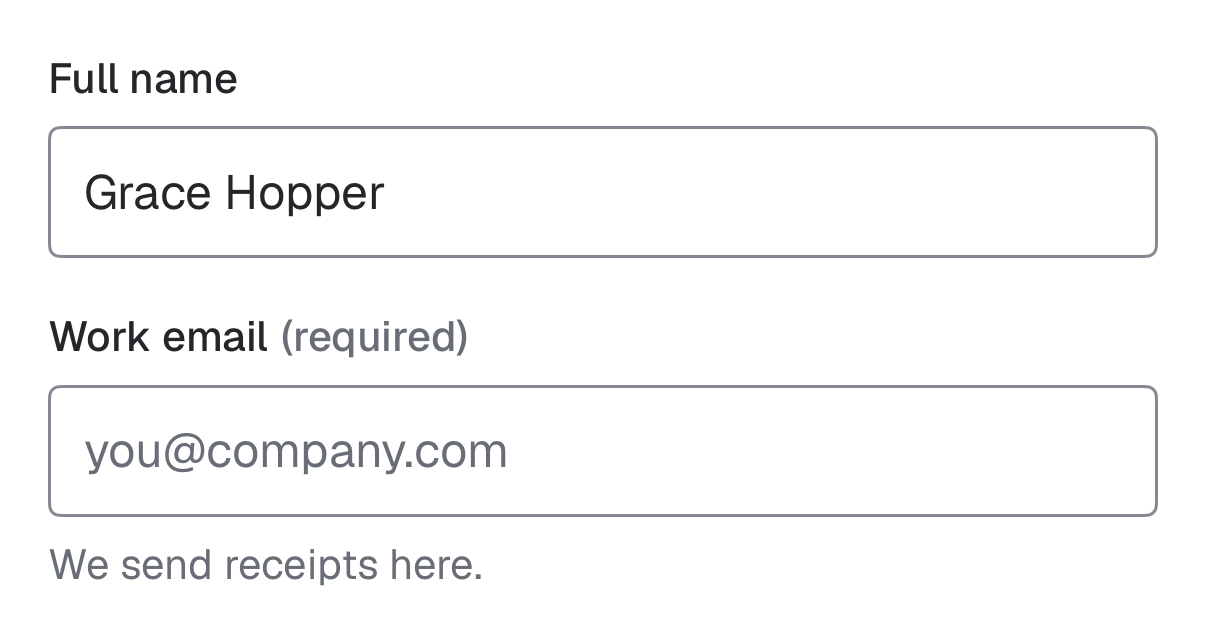
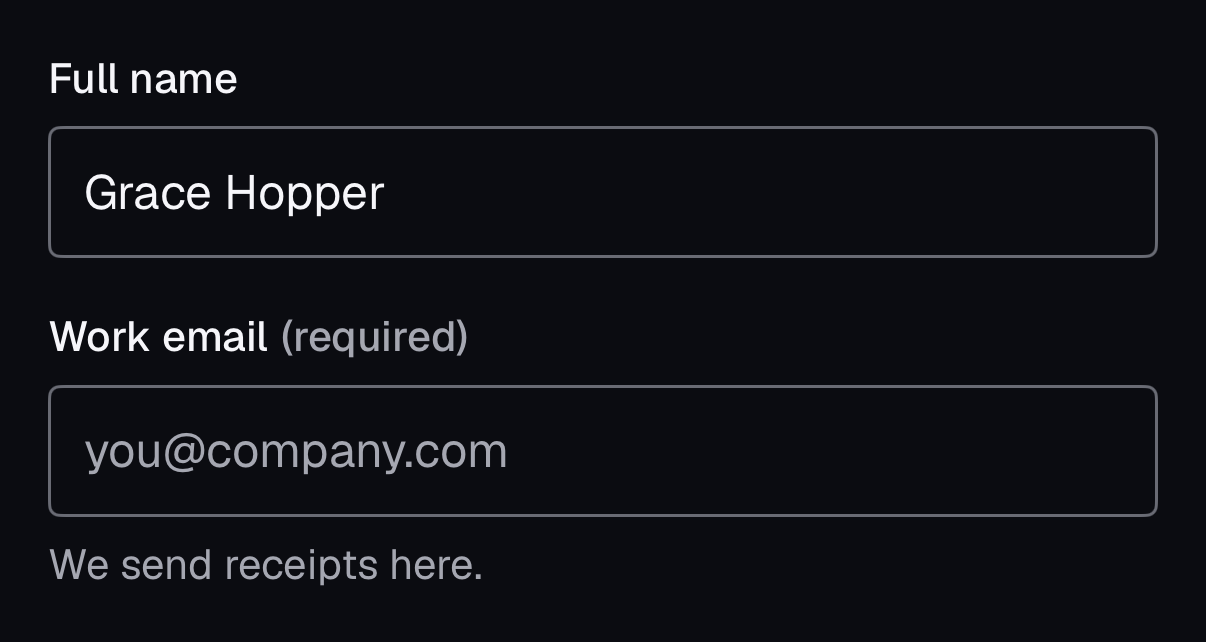
The same component for iOS (SwiftUI, AcmeUI) and Android (Jetpack Compose, com.acme.ui), built on each platform's own controls with the same tokens.
AcmeTextField
Swift
AcmeTextField("Work email", text: $email, prompt: "you@company.com", description: "We send receipts here.")
.acmeKeyboard(.email)- Label, input and description in one view: the label names the field and the description or error is its VoiceOver hint.
- .acmeKeyboard sets keyboard type, autofill and capitalization.
Props
| Prop | Type | Default | Description |
|---|---|---|---|
| type | string | 'text' | Native input type. Use the most specific one (email, tel, url) for the right mobile keyboard. |
| autoComplete | string | — | Set it for personal data so browsers and password managers can fill it (WCAG 1.3.5, 3.3.7). |
| required | boolean | — | Marks the field required; pair with FieldError match="valueMissing". |
Accessibility
- Role
- textbox
- You provide
- A label: Place inside Field with a FieldLabel; Field wires label, description and error.
- Built in
- data-invalid shows a destructive border and FieldError shows an icon plus text.
- Placeholder text meets 4.5:1 but never replaces the label.
- WCAG 2.2 criteria
- 1.3.1, 1.3.5, 3.3.1, 3.3.2, 4.1.2
Don’t
- Use placeholder as the label.
- Disable paste.
Tokens
- color.input
- color.background
- color.muted-foreground
- color.destructive
- color.ring
- radius.md
- size.control.md